Audio Loopback
Loopback sends one stereo source from iD Control to the computer on Inputs 21+22. It can capture an iD Control mix or computer playback without connecting additional cables.
Selecting a Loopback Source
Open Settings > Routing > Loopback Source. Select Main Mix, Mix A, Mix B, Mix C, Mix D or Virtual Thru. Only one source can be selected at a time. Main Mix is the default source. iD4+ retains the selected source when powered off. Loopback is controlled in iD Control only: there is no dedicated hardware Loopback control, hardware status indicator or FN-button assignment.
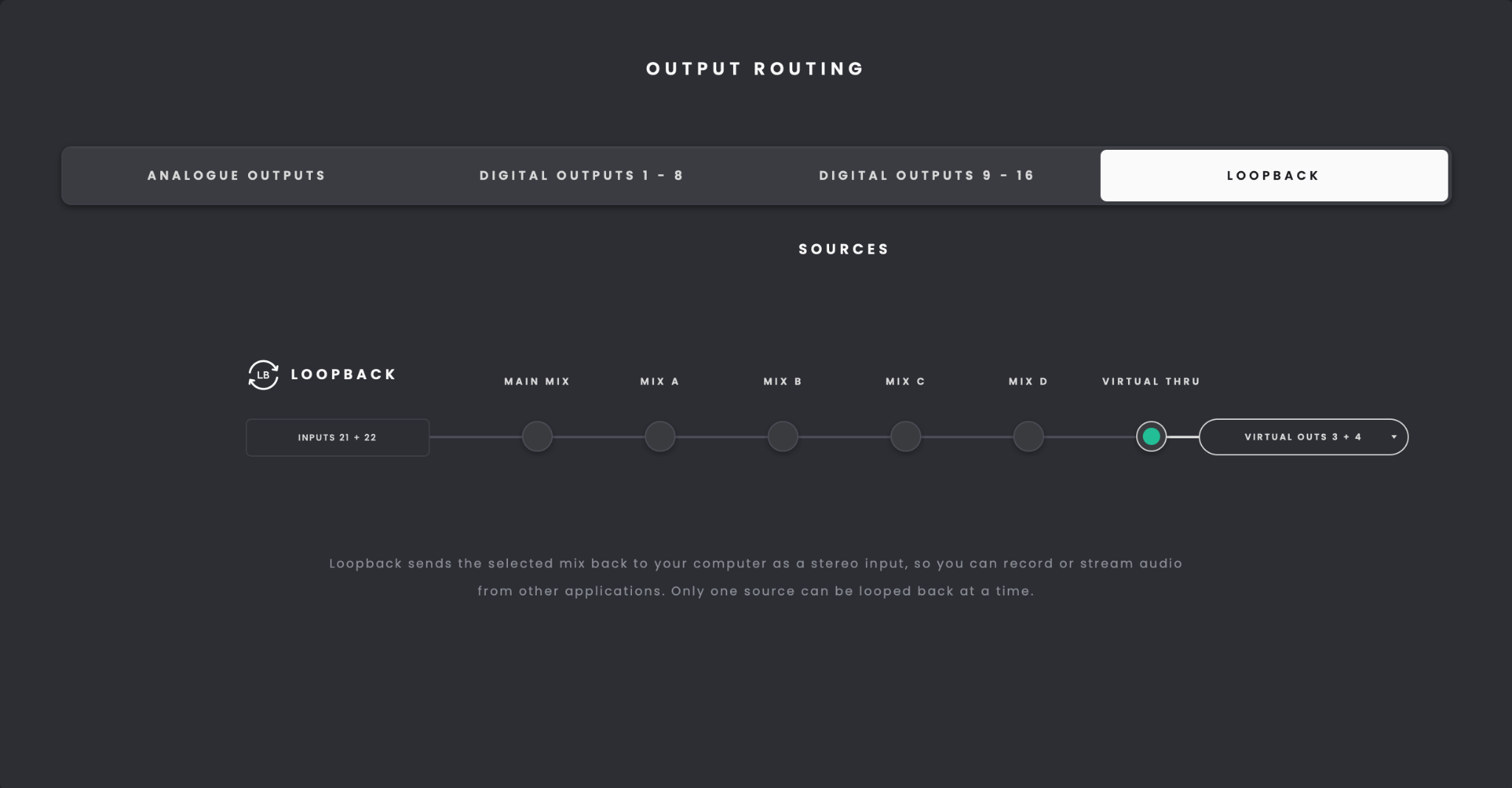
Main Mix captures the Main Monitor Mix after the monitor level, Mute, Dim, Mono and RoomTune correction. Changing these controls also changes the Loopback signal. Muting or dimming the monitors therefore mutes or dims Main Mix Loopback. Select an Independent Mix to loop back the balance created in its corresponding Mix panel.
Virtual Thru sends a stereo pair of computer playback channels directly to Loopback, bypassing the iD Control Mixer. Mixer fader, mute, solo and DSP settings do not affect this feed.
Select any stereo pair from Virtual Outs 1+2 through 23+24 using the Virtual Outs selector.
You can change the Virtual Outs selection while Main Mix or an Independent Mix is used for Loopback without changing the active Loopback source. The chosen pair is used when you next select Virtual Thru.

If Virtual Thru is already selected, changing the pair immediately switches the Loopback feed and moves the Loopback icon to the newly selected virtual channels.
When Virtual Thru is selected, the Loopback icon appears in the selected virtual channel header in the Mixer. The icon is not displayed when Main Mix or an Independent Mix is selected.
Recording or Streaming Loopback
In your DAW or streaming software, select iD4+ Inputs 21+22 as the stereo Loopback input.
Keeping Computer Audio Separate
To capture computer audio separately from the Main Monitor Mix, send that audio to a virtual pair other than Virtual Outs 1+2, then select the same pair as the Virtual Thru source in the Loopback Source tab. Select the required output channels in the source application's audio settings. On macOS, output channels can also be configured in Audio MIDI Setup; on Windows, select the required output pair in Sound settings.
Recording a Mix With Comfort Reverb
Comfort Reverb is intended primarily for monitoring and is not included in the normal microphone or instrument signal recorded by your DAW. To record a mix with Comfort Reverb, use Loopback.
- In iD Control, build an Independent Mix such as Mix A, with the required microphone, instrument and Comfort Reverb levels.
- Open Settings > Routing > Loopback Source and select Mix A.
- In your DAW, create a stereo audio track and select iD4+ Inputs 21+22 as the recording source.
- Record-enable the stereo track and begin recording. The complete selected mix, including Comfort Reverb, will be captured.
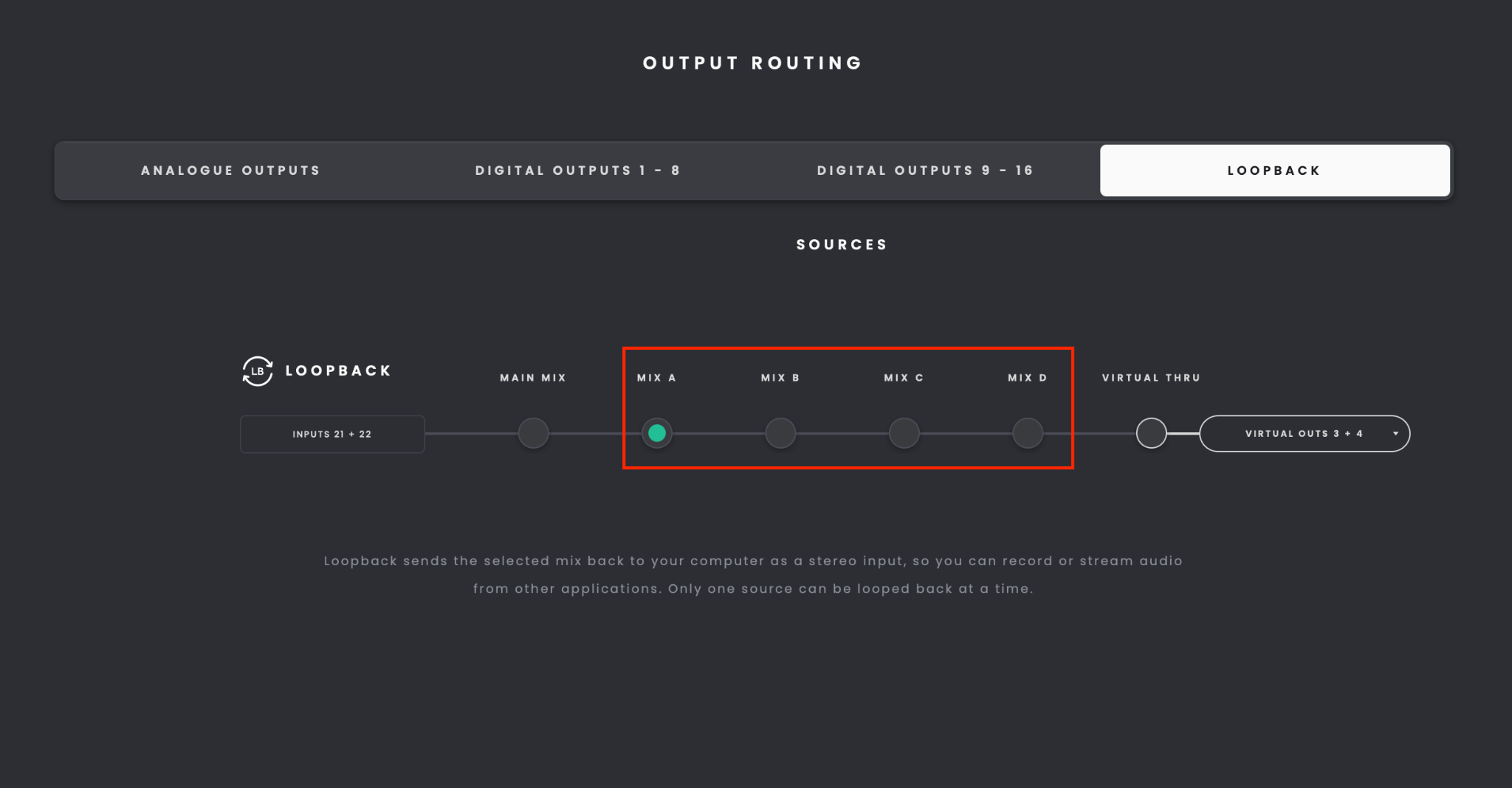
If you also want a separate dry recording, record the original analogue input on another mono track. The Loopback feed may include other live inputs or computer playback that are present in the selected mix.
Do not monitor the Loopback recording track back through the same source mix, as this could create an audio feedback loop.