Settings & Routing
The default iD4+ settings are suitable for initial recording and monitoring. Open Settings to adjust monitor behaviour, Talkback, digital I/O or device options; use Routing when you need a different source to feed a physical output.
Use Monitor Settings to set the Dim Amount, Reference Level, Volume Recall, Talkback source, Mono Mode and FN assignment.
Use Device Settings for Digital Mode, Clock Source and Preamp Trim. Global Mute also has a scope setting: choose Speaker Outputs to mute speakers only, or All Outputs to mute both speakers and headphones.
Talkback Settings
Talkback uses an input from the connected iD4+.
Choose the iD4+ input channel you want to use as the Talkback source.
A Talkback icon appears at the top of the selected input's Mixer channel strip, identifying the input assigned to Talkback.

By default, no Talkback source is selected.
Function Button Settings
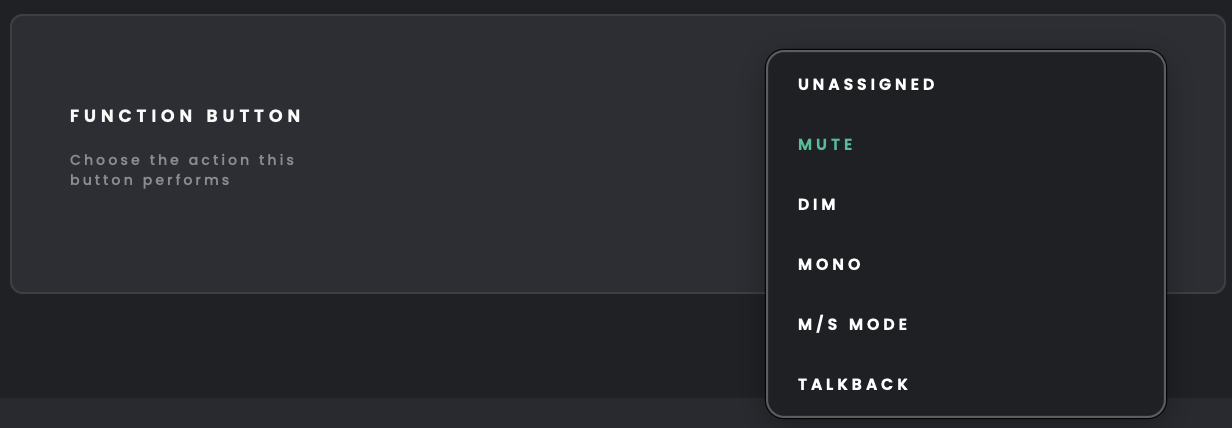
Choose the FN assignment you want the hardware button to control: Mono, M/S Mode, Reference Level or Monitor Correction On/Off.
The active FN assignment is displayed in the Monitor Panel and can be changed in FN settings.
Routing
Open Routing when you need to send a particular mix or computer-playback source to a physical output. The output destinations are shown as stereo pairs by default; switch to Mono view to assign the left and right channels separately.
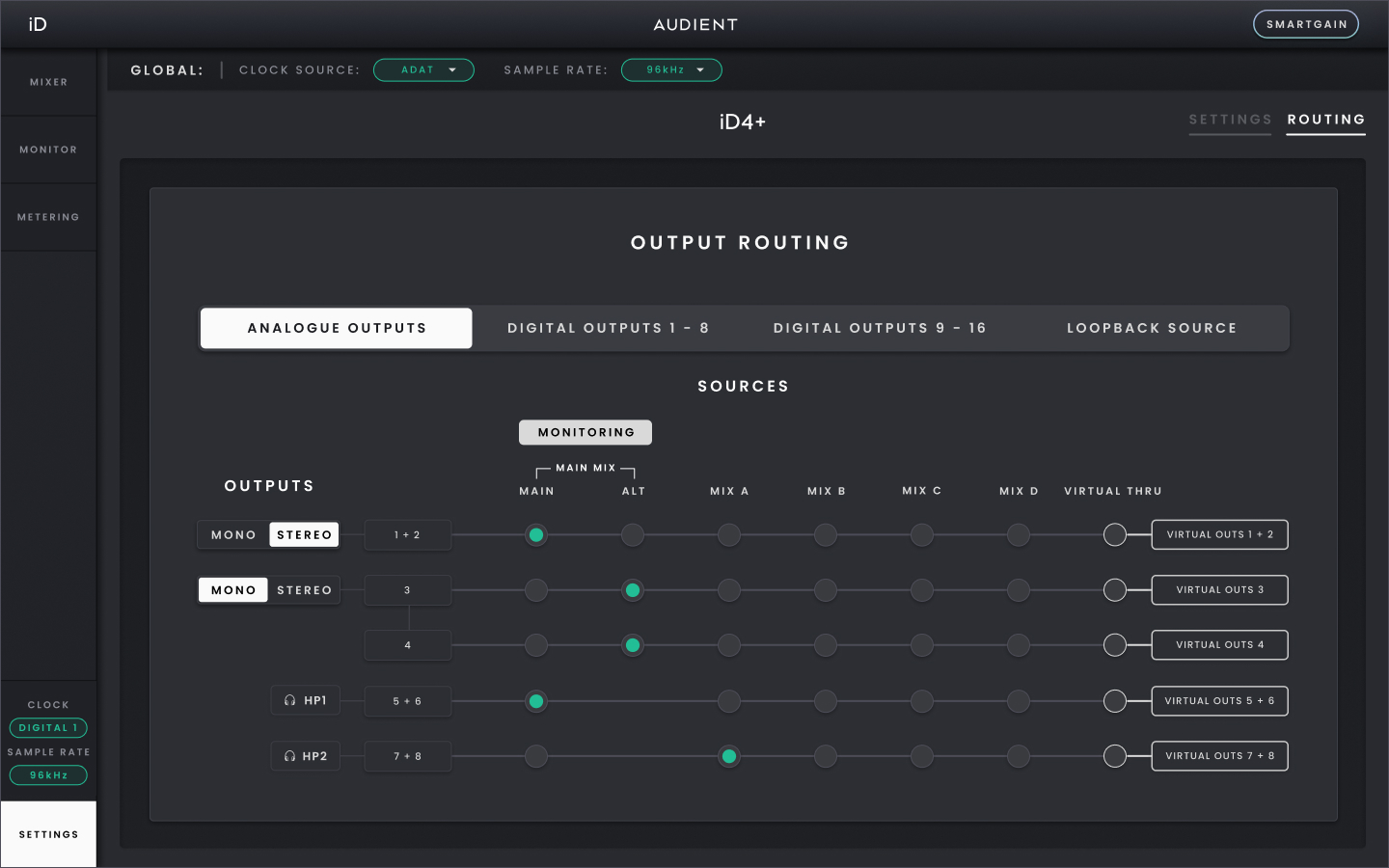
Choose from Main Mix, the Independent Mixes or the available Virtual Thru sources. Main Mix appears as separate Main and ALT routing sources, both fed from the same Main Monitor Mix.
Virtual Thru routes stereo computer audio directly to an output without passing through the iD Control Mixer. The analogue destinations are Main Outputs 1–2, ALT Outputs 3–4, HP1 and HP2; in the default routing HP1 uses output channels 5–6 and HP2 uses output channels 7–8.
Assigning a Virtual Thru source to an output displays a warning that the signal could be loud. Select Continue to apply the routing change, or Cancel to leave it unchanged.
For normal use, no routing changes are needed: Main feeds Outputs 1–2, ALT feeds Outputs 3–4, Main Mix feeds HP1 and Mix A feeds HP2 by default.
When you assign the Main routing source to ALT Outputs 3–4 while RoomTune correction profiles are configured, iD Control warns that both monitor pairs will use that source's Monitor Correction Profile. Select Continue to apply the change, or Cancel to keep the existing routing.
Routing to Digital Outputs
Both optical outputs can also be assigned in Routing. Set each digital output port to ADAT or S/PDIF in Settings; the destinations shown in Routing depend on the selected formats and sample rate.
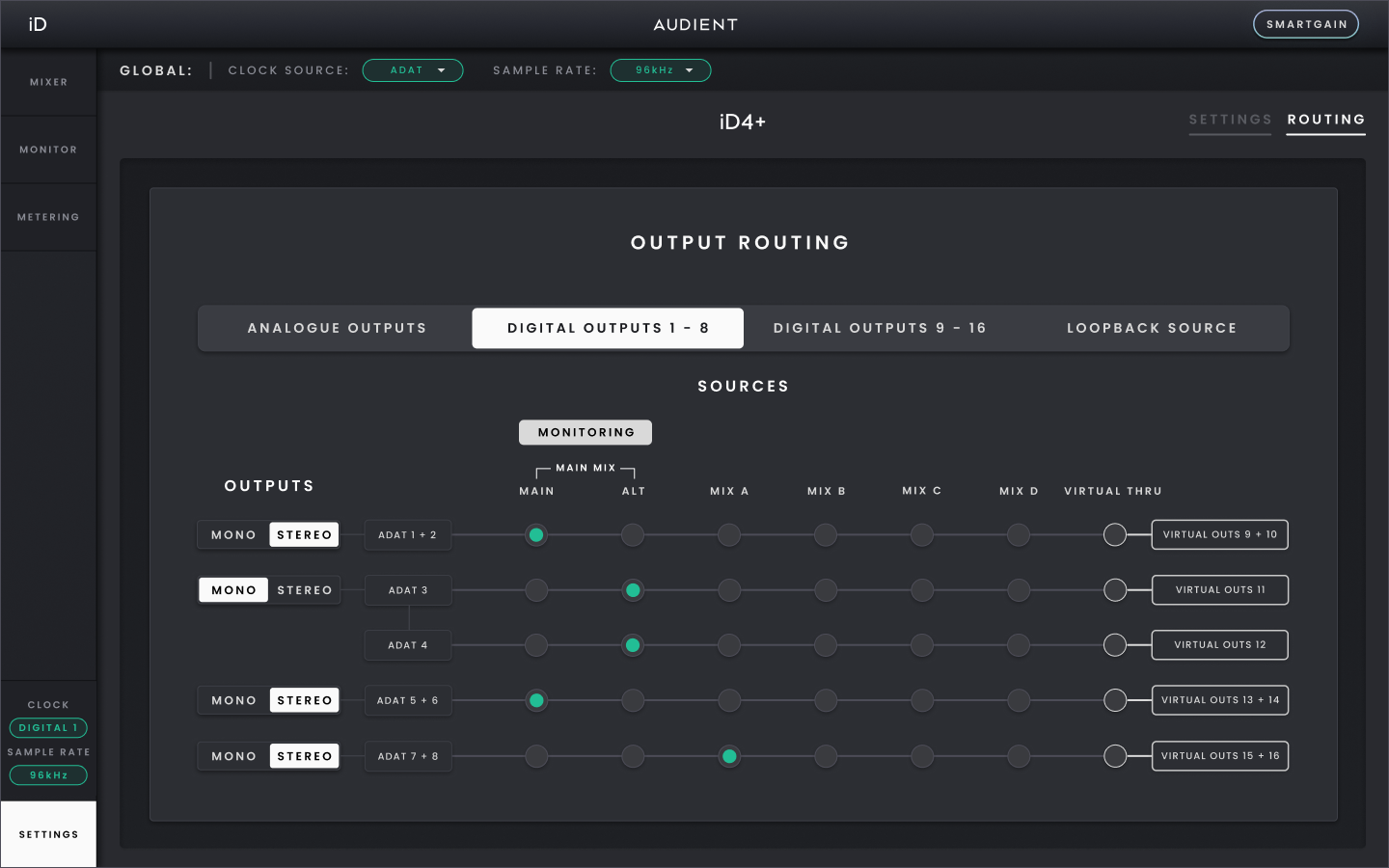
To feed connected digital equipment, route Main Mix, one of the Independent Mixes (Mix A–D) or an available Virtual Thru source to the required digital output. Outputs are shown as stereo pairs by default; select Mono view if you need to route the left and right channels separately.
In ADAT mode, Digital Output 1 provides channels 1–8 and Digital Output 2 provides channels 9–16 at 44.1/48 kHz. At 88.2/96 kHz, each port provides four channels; at 176.4/192 kHz, each port provides two channels (1–2 and 9–10 respectively). In S/PDIF mode, each optical port provides one stereo output pair where S/PDIF is supported.
Please note: When digital outputs are set to S/PDIF Mode, routing a Main Mix Source to the digital outputs is not supported.