Monitor Control & Mixes
Mixer Monitor Control in iD Control
The Monitor Panel at the top right of the Mixer gives you the controls you need most often while recording or listening. Use it to change the active listening output and monitor level without leaving the Mixer; open the Monitor Reference Window when you want more space.
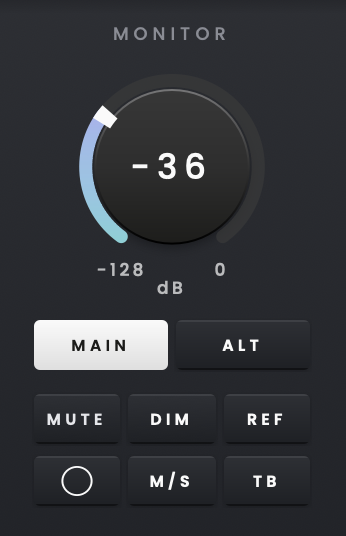
From the Monitor Panel you can adjust Output Volume, switch between Main and ALT speakers, control Mute, Dim, the Function Button, Mono, M/S Mode and Talkback, manage RoomTune Monitor Correction, and access the Main and Independent Mixes.
The hardware monitor controls are the Control Wheel, MAIN, headphone and FN buttons. By default, the Function Button is unassigned. Choose an assignment in iD Control Settings or from the FN control in the Monitor Panel.
Main and ALT
In the iD Control Monitor Panel, use MAIN and ALT to switch between two connected pairs of speakers, for example when comparing how a mix sounds on different monitors. MAIN is selected by default. Lower the listening level before switching to a speaker pair with a different sensitivity.
Select ALT to monitor through Outputs 3–4, and select MAIN to return to Outputs 1–2.
Headphone monitoring and source selection
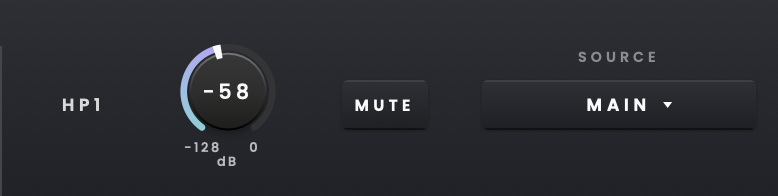
The two headphone sockets share the HP1 output. Adjust the headphone level on the iD2 hardware or in the Monitor Reference Window in iD Control, where the HP1 source can also be selected.
The HP1 level range is -128 dB to 0 dB.
Select Main Mix, Mix A or Mix B as the HP1 source. Select Host to send computer channels 1–2 directly to HP1, bypassing the iD Control Mixer.
When HP1 is sourced from an Independent Mix, it bypasses the main monitor controller. The main monitor path's Mono, M/S Mode, Mute and Dim controls therefore do not affect that headphone mix. When HP1 is sourced from Main Mix, its Mono and M/S monitoring settings are heard through the headphones.
Independent Mixes
If a performer needs a different headphone balance from the one you are hearing through the speakers, use Mix A or Mix B. Each Independent Mix can have its own channel levels alongside the Main Mix.
To make a separate performer mix, expand Mix A or Mix B in the Mixer and adjust the channel faders and pan settings for that mix. Then select the same mix as the HP1 source in the Monitor Reference Window. Changes to this cue balance leave the Main Mix unchanged. For example, if a singer needs more vocal in the headphones than you need through the speakers, raise the vocal level in Mix A and select Mix A for HP1.
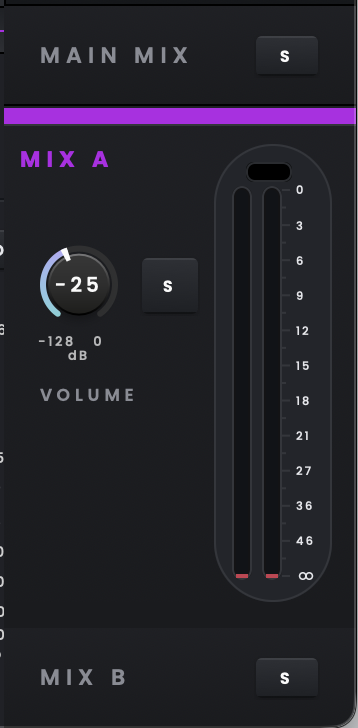
Only one mix can be expanded at a time. Main Mix is expanded by default, while Mix A and Mix B are collapsed. Expand a mix to view its Volume control, Solo, output meters and Histograph. When collapsed, only the mix name and Solo control are shown.
Use Solo on Mix A or Mix B to audition the performer mix through the Monitor Output.
The first time you open an Independent Mix, its channel controls start from their default state. Any changes you make are then saved automatically for recall.
Monitor Reference Window
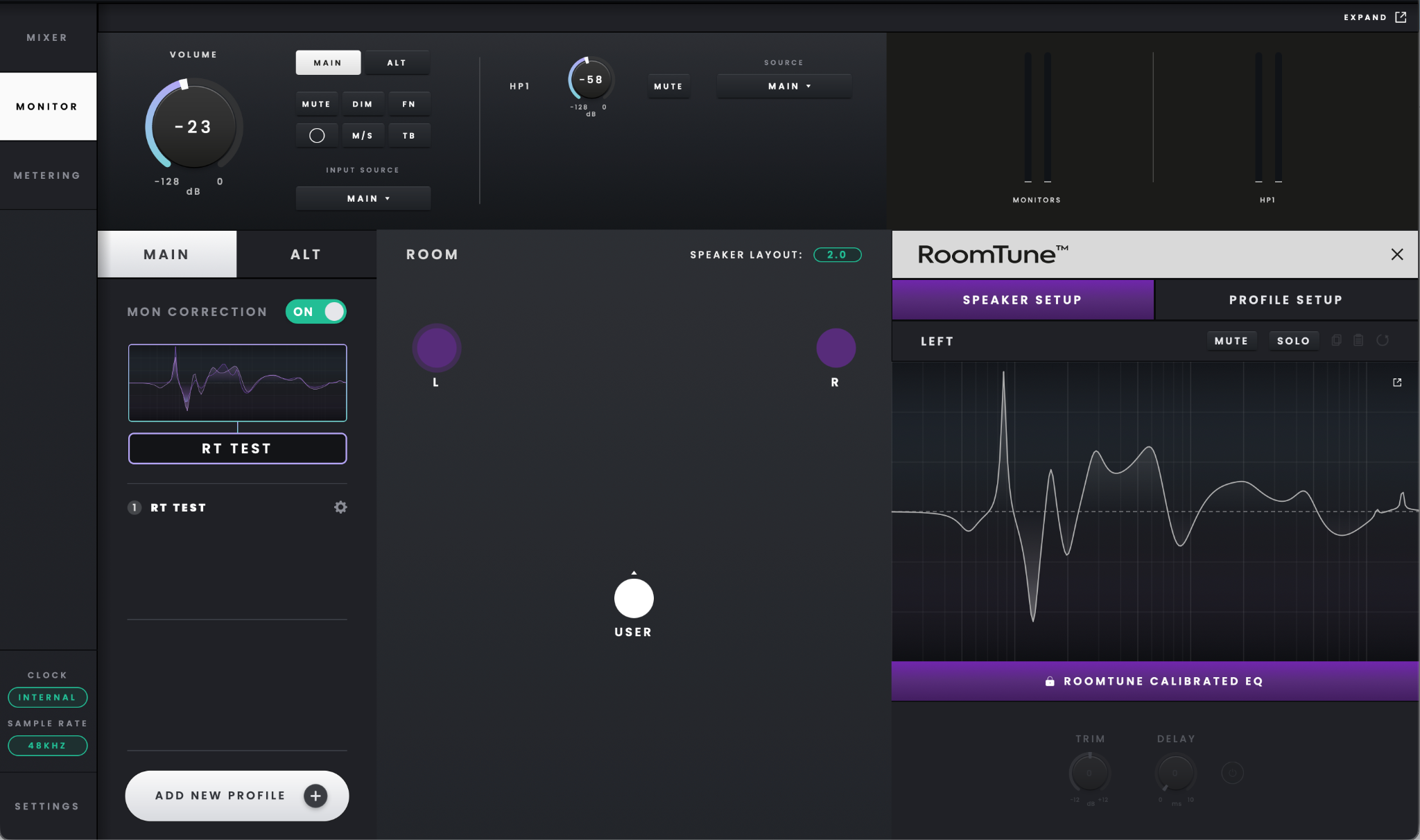
Choose Monitor from the side navigation when you want a larger dedicated view of the monitoring controls.
Changes made in the Monitor Reference Window are reflected in the Mixer Monitor Panel, and vice versa. If the hardware is in Input Mode when you change Output Volume in software, the Control Wheel LED ring briefly shows the new monitor level.
The Monitor Reference Window contains Main and ALT monitoring, output metering and RoomTune Monitor Correction. Open it in a separate window to keep these controls visible. Select Show Expanded to bring the window to the front or Close & Dock to return it to the main application.
Volume Recall
Leave Volume Recall enabled if you want iD2 to return to the previous monitor level after power-up. It is enabled by default.

When enabled, the recalled level is shown in the Monitor Panel, Monitor Reference Window and Control Wheel LED ring.
Volume Recall is unavailable when running the iD2 as a standalone device without iD Control installed.
Reference Level
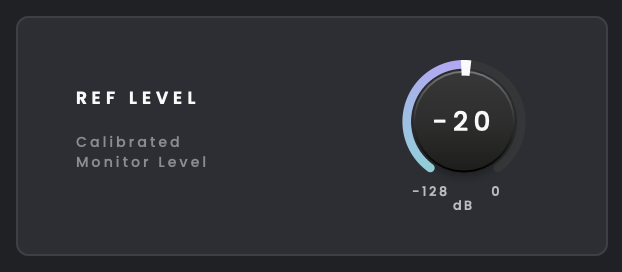
Use Reference Level to store a calibrated monitor level that you can return to quickly. The available range is −128 dB to 0 dB.
Reference Level can be engaged from iD Control or assigned to the FN button.