Manual Monitor Correction
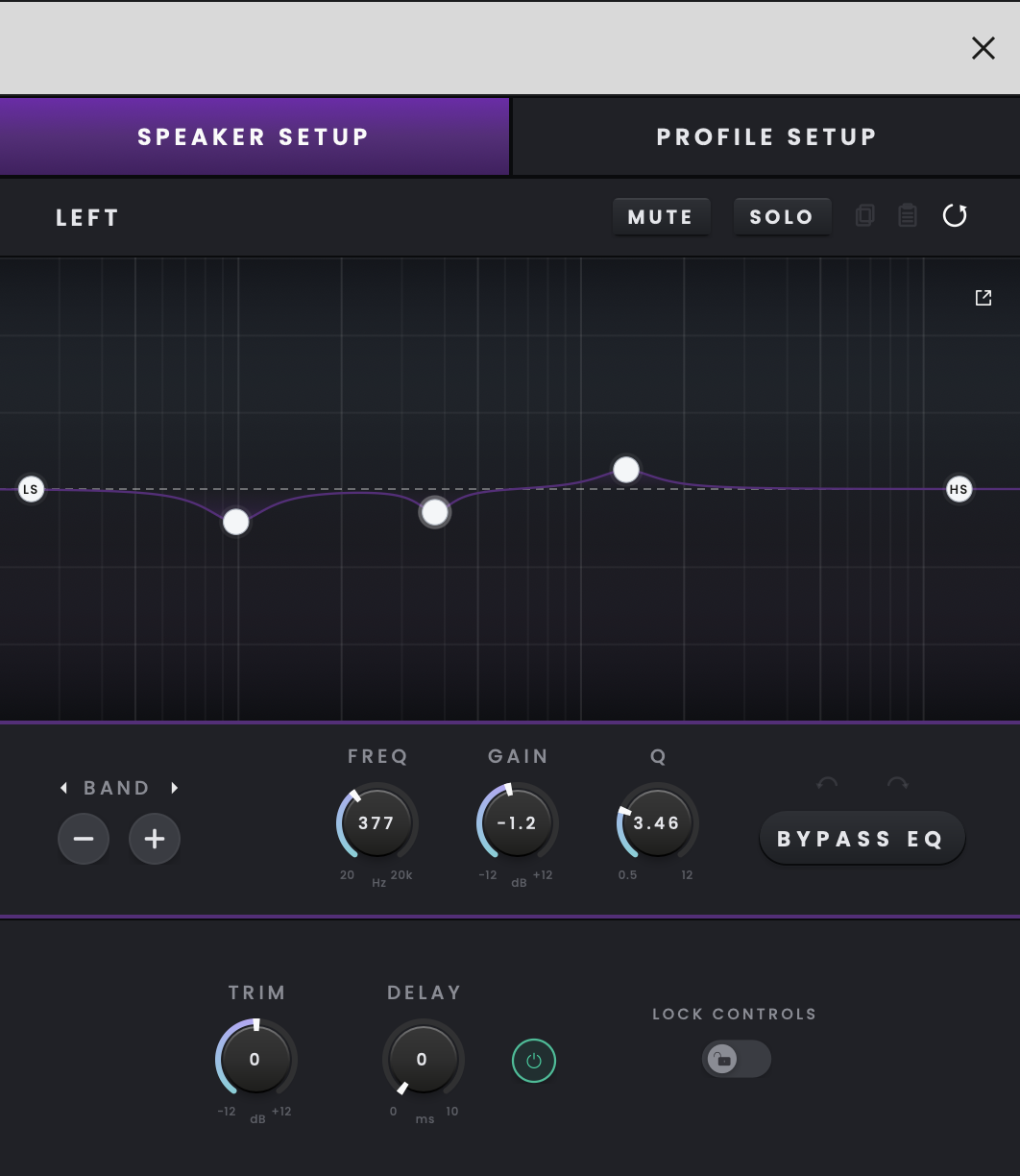
Manual Monitor Correction creates an output EQ profile in iD Control without measuring the room with RoomTune. You can use measurements from another system as a guide or make adjustments by listening. Measurements made in other software are not imported or converted automatically.
Creating a manual correction profile
- Open the Monitor Reference Window in iD Control and select MAIN or ALT. The selected output determines which speaker pair the new correction profile is created for.
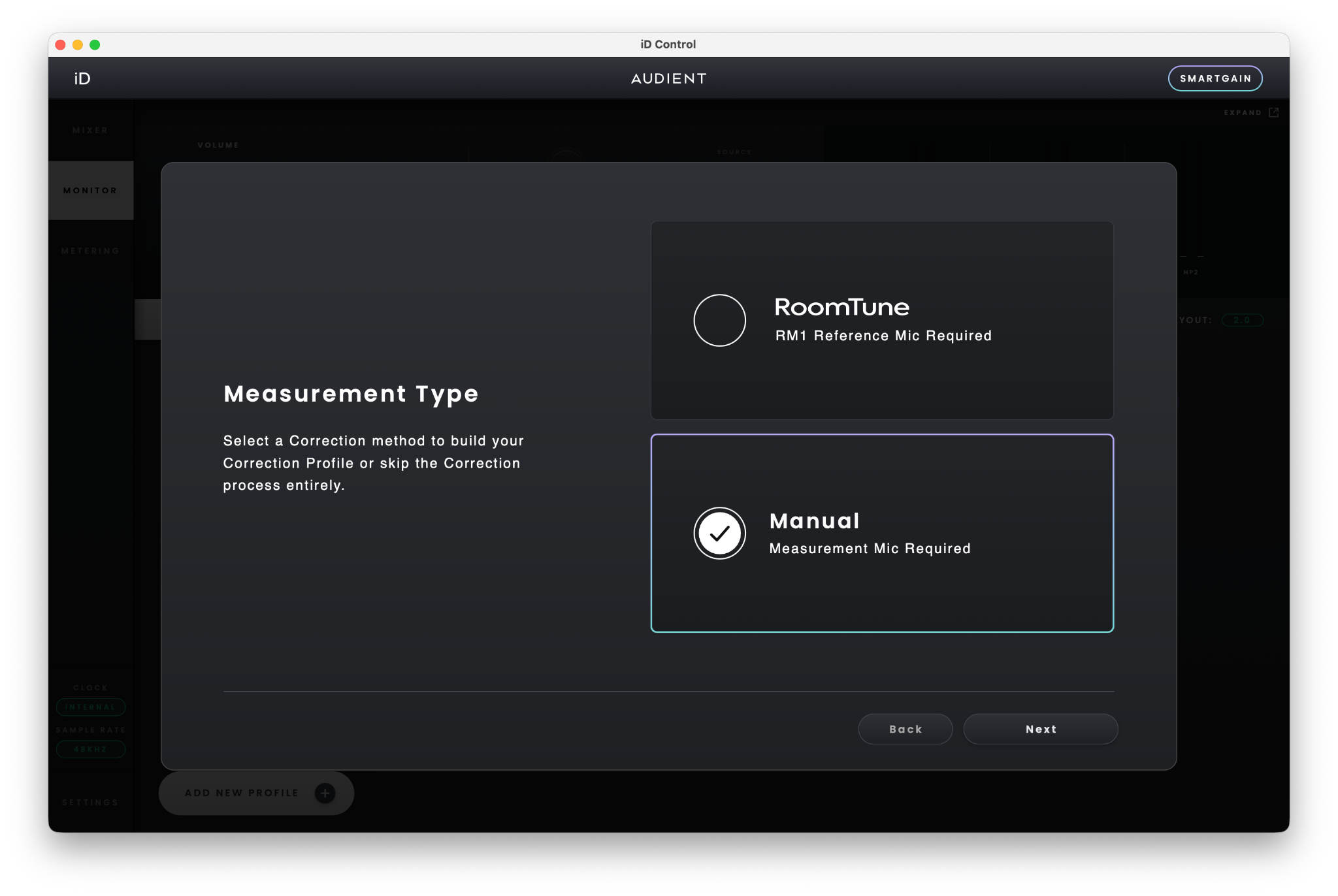
- In Monitor Profiles, select the add monitor profile control and choose Manual.
- Select the speaker you want to adjust and configure its correction EQ. Repeat for the other speaker as required.
- Select an EQ band, adjust its controls and listen to the result. Use band bypass to compare the sound with and without that band. Repeat for the other bands as required.
- Compare the overall result using Monitor Correction on/off, keeping the listening level consistent. When satisfied, save or export the profile to iD2 and give it a name.
Understanding the EQ parameters
Manual Monitor Correction supports up to 20 EQ bands. Low Shelf and High Shelf filters are always available, and you can add further bands to customise the correction.
Low Shelf: raises or lowers the low-frequency range below the selected frequency. Use it to make broad bass adjustments.
High Shelf: raises or lowers the high-frequency range above the selected frequency. Use it to make broad treble adjustments.
Parametric bands: make more focused changes around a selected centre frequency. Use these to address narrower peaks or dips.
Frequency sets the part of the spectrum affected. Gain sets how much that area is boosted or cut. Q controls the width of a parametric band: a lower Q produces a broader adjustment and a higher Q produces a narrower adjustment.
To add another EQ band, use the add control beneath the band header. Select the band to adjust its Frequency, Gain and Q settings.
Bypass EQ allows you to temporarily disable an individual EQ band so you can compare the sound with and without that adjustment. The main Monitor Correction on/off control bypasses or restores the complete correction profile.
Speaker and profile controls
Select the relevant speaker when viewing its correction settings. Trim adjusts the speaker's output level, while Delay adjusts its timing for alignment with the other speaker. Check the result by listening before storing the profile.
To use a saved profile, choose it from Monitor Profiles for the Main or ALT output. Switching between Main and ALT lets each speaker pair use its assigned correction profile. iD2 can store up to 32 Monitor Correction Profiles on the device.